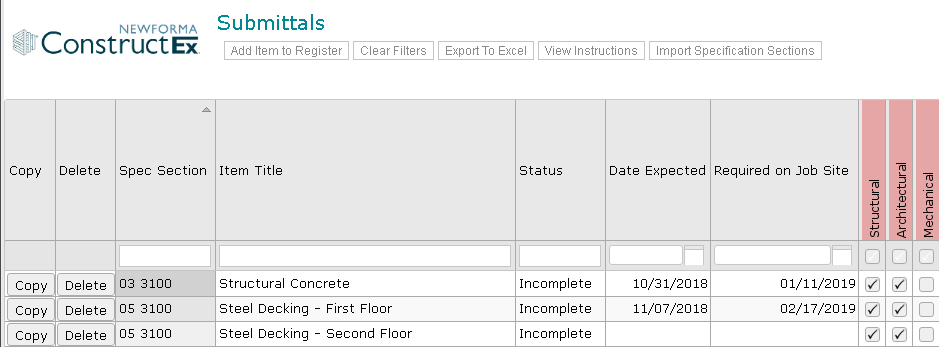
Use the Submittal Register grid to track submittal statuses and export full lists of the incomplete/complete submittals.
Non-administrative users can take advantage of the column filters to locate items. Project Administrators can use the Submittal Register grid to edit multiple records at the same time.
To access the Submittal Register, first open the Submittals module by selecting Submittals from the Construction Administration dropdown list. Scroll to the bottom of the right navigation panel and select View Register.
Project Administrators will see the option to View/Edit Register.
Several action buttons appear at the top of the submittal register. The options available depend on your role.
Click to add a new entry to the submittal register. This option is only available to Project Administrators.
Click to clear any column filters currently in use.
Exports the contents of the submittal register grid to Excel. You can then use additional filtering and sorting options as needed.
Opens the instructions for editing items in the grid. This option is only available to Project Administrators.
Allows for the import of submittal register items from a template. This option is only available to Project Administrators.
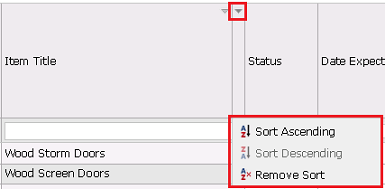
Click on a column header to sort by that column. To see additional sorting options or to clear the sort, hover over the column header and click on the arrow that appears on the right side of the column header. Select the desired sort option from the popup menu.
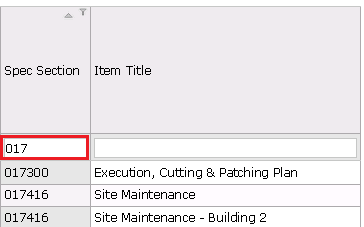
Enter a value in the filter box at the top of a column to filter the list.
Click to add a copy of the item to the submittal register. This saves data entry time if you are adding similar items; simply change the values in the copy as needed.
Click to delete the item from the submittal register.
The spec section for the item.
The submittal register item's title.
Indicates whether the item is complete or incomplete.
The expected completion date for the item.
The date the materials related to the item are expected on site.
The pink columns represent all trades/disciplines defined for submittals. Select the checkbox for a trade/discipline to assign it to the register item.
The green columns represent all categories defined for submittals. Select the checkbox for a category to assign it to the register item.
The blue columns represent all defined submittal types. Select the checkbox for a type to assign it to the register item.
The subcontractor assigned to the register item. Automatically populates the Subcontractor/Manufacturer field in submittals. If an item on the submittal register is tagged with a Responsible Contractor and a Date Expected, late notices are sent if the item is open beyond its expected date.
In order for users to take advantage of the register, you must enable the automation of the submittal register in the project:
1. In the Submittals module, select Administration>Module Configuration.
2. Scroll down to the Submittal Numbering Configuration section.
3. Select the Restrict Specification Section to Submittal Register Entries checkbox. This enables use of the submittal register.
4. Click Save Settings below the Submittal Numbering Configuration section.
Select Construction Administration > Submittals. Scroll to the bottom of the right navigation panel and select View Register.